Turn a written brief into a scene, product concept, or reusable design element.
Seedream 5.5 AI Image Generator For Visual Concepts
Create Scenes, Shape Materials, And Refine The Details
Turn the idea in your brief into something people can see. Seedream 5.5 helps you establish a scene, explore a material, and resolve the details that make a concept convincing. Use this AI image generator for a first visual direction, then bring a reference into image editing when a specific object needs attention. From a rainlit story frame to a footwear campaign, build around the message your image needs to communicate.
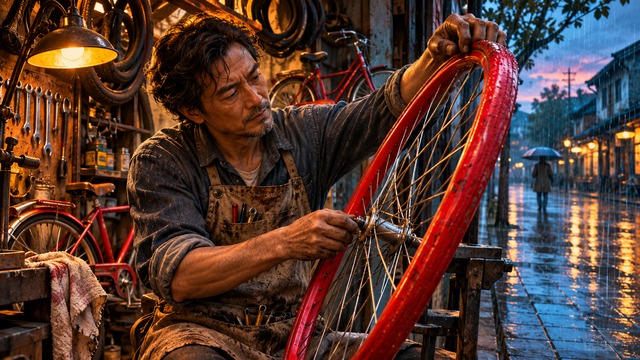
From Brief To Image With Seedream 5.5
Write a direction, add a reference when needed, and generate your concept. Review the result before requesting another change.

Write Your Brief
Describe the subject, setting, lighting, and intended composition. Include the exact wording if the image needs a headline.

Add A Reference If Needed
Upload a reference when you want to guide an existing subject or edit an image. State which details to keep and what to change.

Generate Your Concept
Choose the available format and generate with Seedream 5.5. Check the displayed settings and credit cost before submitting.

Review And Refine
Open the result and check its details. Download the version you want, or use it as a reference with a focused revision instruction.
Make Every Visual Decision Easier To See
Seedream 5.5 combines an AI image generator with image editing for projects that evolve after the first draft. Develop the overall scene, then concentrate on the part that carries the idea. These conceptual illustrations show possible directions rather than measured model results.
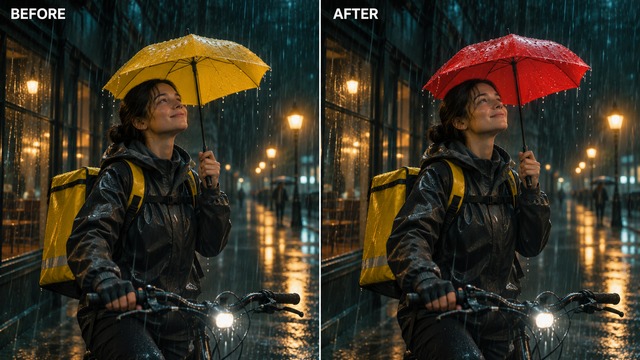
Seedream 5.5 Image Editing For Story Frames
A useful concept frame tells the viewer where to look and what is happening. Seedream 5.5 can help turn a written situation into a visible moment: a courier pausing outside a shop, a musician preparing backstage, or a repairer returning a bicycle to its owner. Give the AI image generator a subject with a purpose, a camera position, and a light source.
Image editing becomes valuable when the story works but an object distracts. You can edit images with text by naming the object and the change, such as replacing a yellow umbrella with red while keeping the street composition. Seedream 5.5 emphasizes more stable repeated revisions and preservation of unedited areas. Compare each result with the previous version to see what moved. For text to image exploration, establish a clear scene first; use Seedream 5.5 for the next creative decision once the arrangement communicates the intended mood.
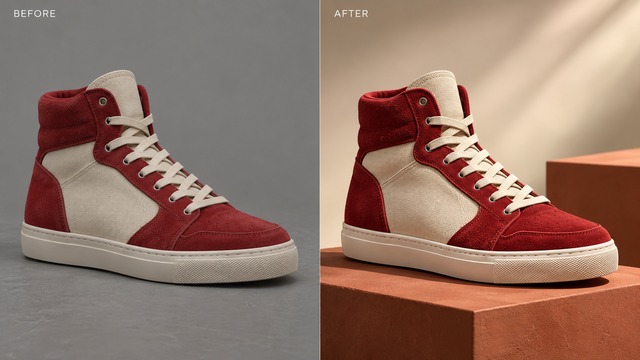
Seedream 5.5 Image Editing For Material Studies
Suede absorbs light differently from rubber, and woven canvas should reveal a different surface from polished metal. Seedream 5.5 emphasizes realistic lighting and finer material detail, giving product photography concepts more specific visual language. Ask the AI image generator for the texture you want people to notice and describe the direction of the light.
For a sneaker concept, start with the toe shape, stitching, sole edge, and fabric panels. Seedream 5.5 can explore a studio arrangement around those details without making the product merely a decorative shape. Use image editing to request a different backdrop or surface finish after the composition is established. Keep the product reference nearby and inspect its proportions, color boundaries, and any branding. Seedream 5.5 supports concept development; product photography for an actual listing still needs to match the real item. Judge the final image against that item rather than relying on atmosphere alone.
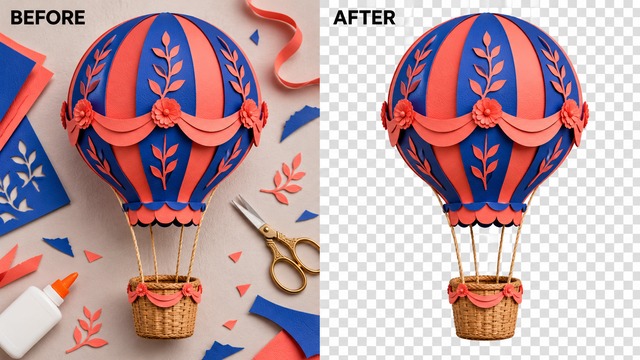
Seedream 5.5 Image Editing For Reusable Elements
A layout changes more easily when its hero element can move independently. Seedream 5.5 introduces native RGBA generation, including full and partial transparency. That opens creative possibilities for isolated paper sculptures, decorative objects, and illustration elements intended for transparent backgrounds. Describe the complete silhouette before adding surface detail.
The AI image generator can develop a balloon, ribbon, or dimensional letterform around a consistent material idea. With image editing, explain which edge, color, or attached detail needs revision. Seedream 5.5 is designed to handle complex outlines and translucent regions, according to its official release. Check the actual output format before treating an export as transparent: a checkerboard picture alone does not contain an alpha channel. For reusable assets with transparent backgrounds, inspect both light and dark placements. Seedream 5.5 helps develop the element; a clear composition and clean boundary make it easier to incorporate into the next design.
Choose A Deliverable, Then Build Around It
Start Seedream 5.5 with the work you need to discuss: a scene, a product direction, an announcement, or a set of movable elements. An AI image generator is easier to direct when the visual has a destination. Image editing then gives each revision a concrete purpose.

Seedream 5.5 AI Image Generator For Story Frames
A creative pitch needs enough information to make the story understandable in one glance. Use Seedream 5.5 to explore a location, the relationship between a person and a prop, and the lighting that establishes the mood. For text to image work, specify the decisive moment rather than a list of cinematic adjectives. Seedream 5.5 can help visualize that beat before a team discusses framing or production choices. Use the AI image generator to establish the idea and image editing to resolve a distracting object. These remain still concepts; a finished frame does not establish movement, sound, or continuity in a video.

Seedream 5.5 AI Image Generator For Product Concepts
Explore product photography with a visible material contrast: red suede against pale stone, brushed aluminum beside folded cotton, or textured rubber over matte paper. Seedream 5.5 can help make these relationships concrete enough for a creative review. Give the AI image generator the reference object's key proportions and leave space where the final layout needs copy. With image editing, change the staging while comparing the product outline against the source. Seedream 5.5 is useful for discussing a visual direction before committing to a shoot or a finished composition. Review recognizable details at full size.

Seedream 5.5 AI Image Generator For Announcements
A workshop announcement or music event graphic has a message to communicate before it has a style to display. Seedream 5.5 improves text rendering, including compact Chinese and English characters, according to the official release. Supply the exact headline, the order of information, and a small number of supporting lines. Use the AI image generator to explore the relationship between the message and the central object. If the layout works but one region does not, edit images with text and name that region precisely. Seedream 5.5 can develop a visual proposal for review; image editing does not replace proofreading.

Seedream 5.5 AI Image Generator For Design Elements
A paper balloon, folded ribbon, or sculptural emblem can anchor several layouts without requiring the same full background each time. Seedream 5.5 supports generating reusable elements with transparent backgrounds at the model level. Start the AI image generator with a complete subject and enough margin around its silhouette. Use image editing for a focused adjustment, then check the export's edges before arranging it beside copy. Seedream 5.5 can help build a coherent visual vocabulary through recurring shapes, textures, and color relationships. When you edit images with text, identify the material and part you want to preserve.
Creative Priorities Worth Keeping In View
These fictional creative perspectives describe possible evaluation priorities for Seedream 5.5. Names and opinions are illustrative, not verified customer reviews. Image editing priorities can differ by creative role.
For Seedream 5.5, I value a frame that explains the action clearly. A meaningful prop gives the team something specific to discuss.
For Seedream 5.5, I value a frame that explains the action clearly. A meaningful prop gives the team something specific to discuss.
Material contrast is my priority with Seedream 5.5. Soft fabric, hard rubber, and a sharp seam should look different in the concept.
Material contrast is my priority with Seedream 5.5. Soft fabric, hard rubber, and a sharp seam should look different in the concept.
With Seedream 5.5, I look for a readable hierarchy. The headline needs space, and supporting information should be easy to find.
With Seedream 5.5, I look for a readable hierarchy. The headline needs space, and supporting information should be easy to find.
A Seedream 5.5 revision should be easy to compare. Keeping earlier versions helps me judge if one change improved the visual idea.
A Seedream 5.5 revision should be easy to compare. Keeping earlier versions helps me judge if one change improved the visual idea.



Questions Before Your First Seedream 5.5 Concept
Understand the starting point, the revision process, and the checks that help an image become useful. Seedream 5.5 brings generation and image editing into the same creative conversation.
Seedream 5.5 is ByteDance Seed's image generation and editing model. Its official release highlights more realistic visual detail, stronger text rendering, stable repeated revisions, and native RGBA output. Use this AI image generator for a scene idea, a material study, or a design element that needs a clear visual identity. Seedream 5.5 can support product photography concepts and narrative stills, but each output still needs review against your actual reference and intended use.
Start with text to image when the idea exists mainly as a written brief. Give Seedream 5.5 the subject, setting, viewpoint, lighting, and composition. Start with a reference when the appearance of an existing person, object, or arrangement matters to the result. Tell the AI image generator which parts of that reference should guide the new image. Image editing works best with a bounded instruction: identify the part to revise and the surrounding details to retain.
To edit images with text, describe the visible object, the requested change, and the features you want retained. For example, change the umbrella color while keeping its position, the courier, and the rainy street. Seedream 5.5 is designed to preserve unedited regions and reduce degradation across successive revisions. Its official demonstration includes 100 rounds; that is a demonstration of model behavior, not a guarantee for every image. Keep earlier versions and compare them after each pass. Image editing should answer a visible question. If several changes are competing, make the most important one clear before asking for another revision.
For product photography, name the surface instead of asking only for realism. Give Seedream 5.5 suede, canvas, rubber, or brushed metal, then describe how the light reaches it. Add the camera angle and a simple background that supports the object. The AI image generator can use those relationships to develop the scene. During image editing, compare highlights, contact shadows, proportions, and material boundaries with the reference. Seedream 5.5 emphasizes more natural textures and lighting, but a dramatic image can still contain a practical mismatch.
Seedream 5.5 introduces native RGBA generation with fully transparent and partially transparent areas. Ask for the isolated subject and describe any materials that should remain translucent. The AI image generator can help establish the object's silhouette; image editing can refine a specific attached detail or color. Actual transparency depends on the export containing an alpha channel. View the saved file over contrasting backgrounds and check ropes, hairlike edges, gaps, and translucent surfaces. Seedream 5.5 model capabilities and a particular file's properties are separate things to verify. A checkerboard used in a conceptual illustration explains the idea but does not prove an export is transparent.
For text to image work, write a compact brief with a subject, purpose, setting, composition, materials, and light. Seedream 5.5 does not need every style word you know; instructions are easier to assess when the relationships are clear. If the image includes words, provide their exact spelling and reading order. Use the AI image generator to develop the visual, then review it at the size people will see. Seedream 5.5 improves text rendering, but you should still check each line, along with product details and any factual content.
Put Your Next Brief Into Focus With Seedream 5.5
Choose the moment, object, or message you want to make visible. Bring it to Seedream 5.5 with a clear direction, use the AI image generator to explore the composition, and refine the detail that makes the concept work. Start with one idea you can recognize and review.