How to Make NEON Duo Dance with Two Photos on MakeShot
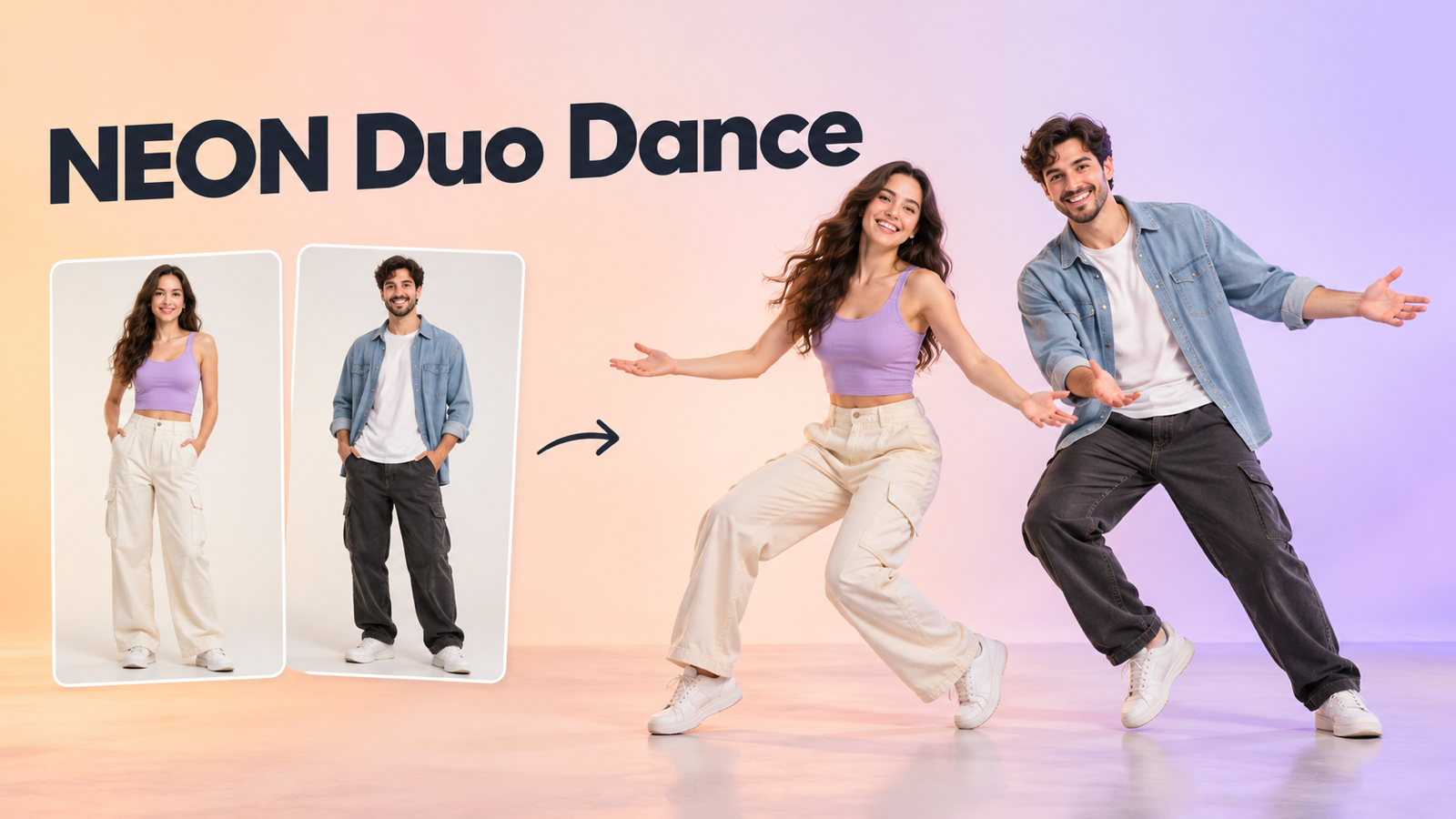
Turn Two Separate Photos into a Shared Dance Performance with MakeShot. Learn What NEON Duo Dance Does, How to Choose Clear References for Both People, Where to Upload Them, and What to Check Before Generating. Then Review Your Finished Duet and Decide Which Version You Want to Share.
The NEON Duo Dance trend traces back to the opening duet in A2O LITE’s “NEON” music video. The nine-member K-pop girl group released its debut single on October 13, 2026, and the launch quickly drew attention. A2O Entertainment reported that the song reached No. 1 on Melon’s Top 100 in just 29 hours and that its music video topped YouTube Korea’s trending videos.
The duo format gives the trend a personal appeal: two people sharing a routine, with each dancer playing off the other. In an AI remake, a new pair takes those roles. Your best friend, your partner, or two creative collaborators can become the cast of a NEON-inspired duet.
With MakeShot’s NEON Duo Dance generator, you can try that idea using one clear photo of each adult. The dance direction is already prepared, so there is no choreography prompt to write. This guide walks you through choosing the photos, creating the video, and checking the finished performance.
What Is NEON Duo Dance?
NEON Duo Dance is a photo-to-video effect built around two performers sharing a dance routine. MakeShot describes its version as a personal interpretation inspired by the opening duo associated with A2O LITE NEON dance.
Each uploaded image acts as an appearance reference for one dancer. The effect uses those references to guide who appears in the performance, while the prepared routine supplies the movement direction. The two source photos can be taken at different times and in different places.
Think of the photos as your casting choices. The person in each picture provides visual information such as facial features, hairstyle, and clothing. AI then interprets those details in motion. This helps explain both the attraction and the limitation: the clip can feel personal, but every face, outfit detail, or step may not match perfectly.
Choose Two Photos That Explain Your Cast
A clear reference gives the generator more useful information about each person. Before opening the uploader, prepare one individual picture of each adult dancer.
Look for:
- A readable face. Even lighting and a direct or gently angled view make the subject easier to identify.
- Visible clothing. Include more of the body when the outfit, trousers, or shoes matter to the look you want.
- An unobstructed subject. Choose pictures without another person overlapping the face or body.
- Similar clarity. Two reasonably sharp photos are a better starting point than one crisp portrait paired with a tiny, blurry image.
The original backgrounds do not need to match. Concentrate on how clearly each photo shows its person. Choose images both people are comfortable using for the duet.
How to Make NEON Duo Dance on MakeShot
1. Open the Dedicated Effect
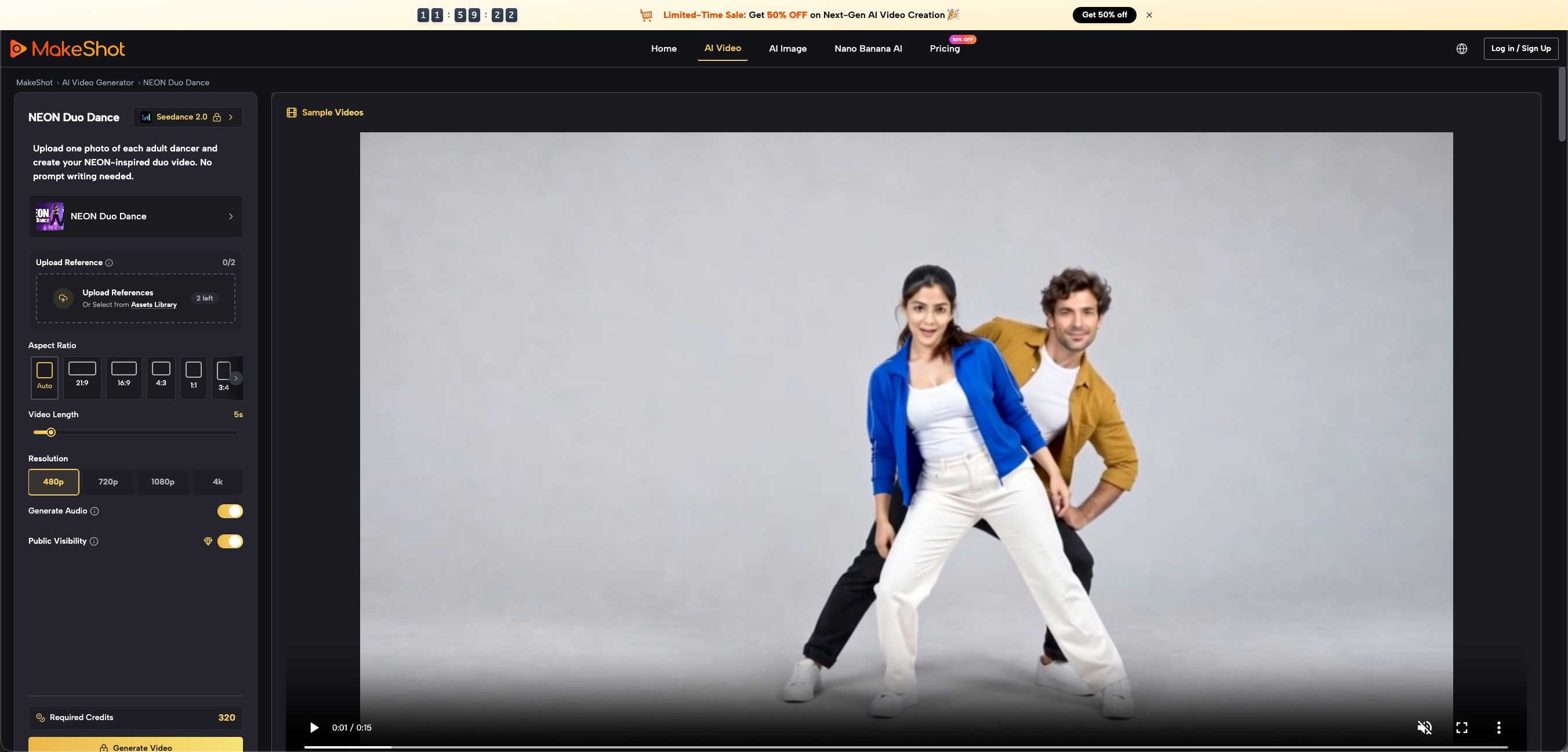
Go to the NEON Duo Dance generator. Sign in if prompted, and keep the effect’s configured model selected. The page brings together the prepared dance direction and the controls for your clip.
2. Upload One Photo for Each Dancer
Find Upload Reference and add the two individual images. You can also choose pictures through Assets Library when suitable images are already available there.
The current form shows a two-image limit. Check that both photos appear in the uploader before continuing, and keep track of their order. Each image represents a different performer, so two copies of the same portrait will not describe the intended pair.
3. Choose the Available Video Settings
Review the aspect ratio, video length, resolution, and audio controls shown in your session. For example, a landscape frame can give two full-body performers more horizontal room, while a portrait frame may suit the post you are planning. Treat that as a composition choice rather than a guarantee about the result.
The page provides the effect instruction internally. You do not need to paste a prompt, describe individual dance moves, or upload a dance video as part of this visitor workflow.
4. Check Credits and Generate
Read Required Credits after choosing your settings. Use the amount displayed for the current configuration to decide whether to proceed. Avoid budgeting from an older screenshot or a price quoted for another model.
When both references and your settings are ready, select Generate Video. Generation creates an AI interpretation of the pair; it does not guarantee a frame-for-frame copy of the reference performance.
5. Watch the Clip and Download Your Favorite
Review the result in My Videos. Watch the complete clip at normal speed, following each dancer through turns and moments when their bodies overlap. Check facial resemblance, clothing continuity, hands, feet, and framing.
Listen to the actual audio as well. Once you have a version you want to keep, use Download and inspect the saved file before sharing it.
Make the Next Attempt More Useful
If one dancer looks less recognizable, start by reviewing that person’s reference. A clearer face or a more complete view of the outfit gives you a specific change to try. Keep the other photo unchanged so you can judge the difference.
If the faces look good but the clip feels awkward, inspect where the problem appears. A strange hand during a turn is different from a face that changes throughout the entire video. Review the whole performance instead of choosing a take from its thumbnail alone.
For a post, let the pairing supply the story: a long-distance reunion, a couple’s joke, or an introduction to two collaborators. Add a caption that explains the occasion and identifies the performance as AI-generated.
Put Your Pair into the Routine
NEON Duo Dance starts with a simple choice: which two people would make this duet fun to watch? Pick one clear photo of each, review the settings and credits, then watch how the pair comes together. When you are ready, create your NEON Duo Dance on MakeShot.